Tutorial: Track
This tutorial demonstrates how to create a custom Track or scene mod. This approach is suitable for race tracks, parkour maps, or any custom environment for players to explore.
Path in Mod Toolkit: Assets/Samples/com.cydream.trackscene
Step 1: Modeling in MagicaVoxel
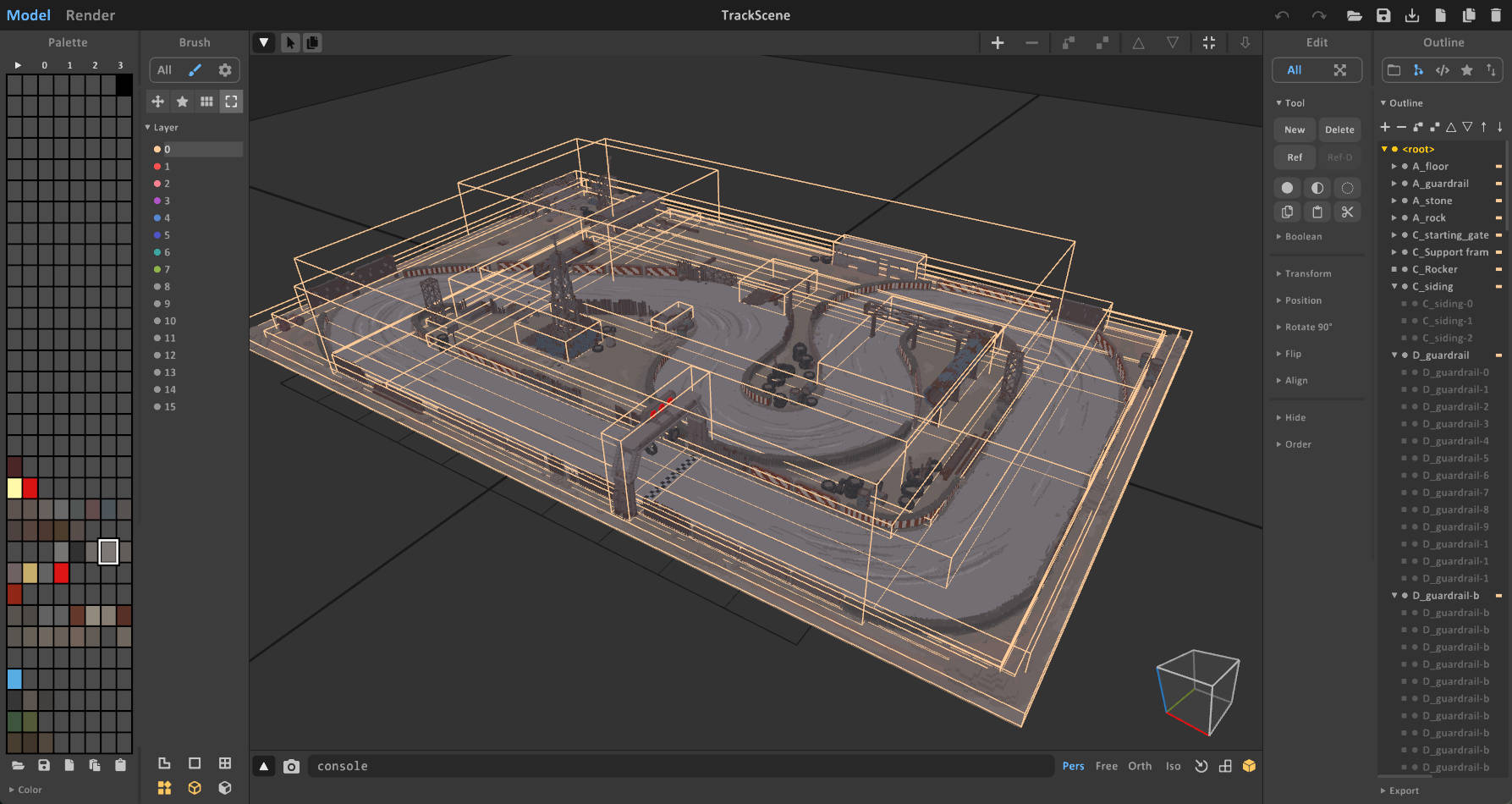
First, create your scene in MagicaVoxel. Since a track is a complex environment, you should use the World Editor in MagicaVoxel to organize your scene into multiple objects.
Naming Conventions
To ensure the game recognizes the different parts of your track correctly (e.g., what is the floor vs. what are obstacles), you must follow the specific naming conventions for scene objects.
Refer to the Scene Naming Guide for the complete list of prefixes.
A_(Static Environment): Use this prefix for the main track geometry, floors, and walls. These objects are indestructible and static.- Example:
A_Road,A_Wall,A_StartLine
- Example:
B_(Dynamic Prop): Use this for obstacles or objects that can be moved or destroyed.- Example:
B_Crate,B_Barrier
- Example:
Material IDs
Ensure you use the correct colors in the palette to define material properties (like hardness or slippery surfaces). See Material ID Mapping.
Step 2: Import into Editor
Once your .vox file is ready:
- Open the Asset Processor in the Mod Toolkit.
- Drag and drop your
.voxfile into the processor. - Crucial Step: In the import settings for this file, select Type as Scene.
- Click Convert to generate the scene prefab.
For more details on the import process, see MagicaVoxel Import.
Step 3: Configure Mod Manifest
After generating the prefab, you need to register it in your ModManifest.
- Locate your
ModManifestasset. - Add your new Track Prefab to the Export Prefabs list (or the specific Scene list if available in your version).
- Ensure the mod type is set correctly if applicable.
See Configure Mod Manifest for general instructions.
Step 4: Validate Scene Budget
Before testing or publishing the scene, select the Voxel Scene component and click Preview Voxel Objects. The preview displays three budget metrics:
- Current Tris: The generated triangle count compared with the recommended budget.
- Current Voxel Count: The total voxel count compared with the recommended budget.
- VoxelObjectProxy Count: The number of voxel object proxies compared with the recommended budget.
For the Track sample, the preview reports 274,422 / 800,000 tris, 2,110,556 / 8,000,000 voxels, and 271 / 500 voxel object proxies, all within budget.
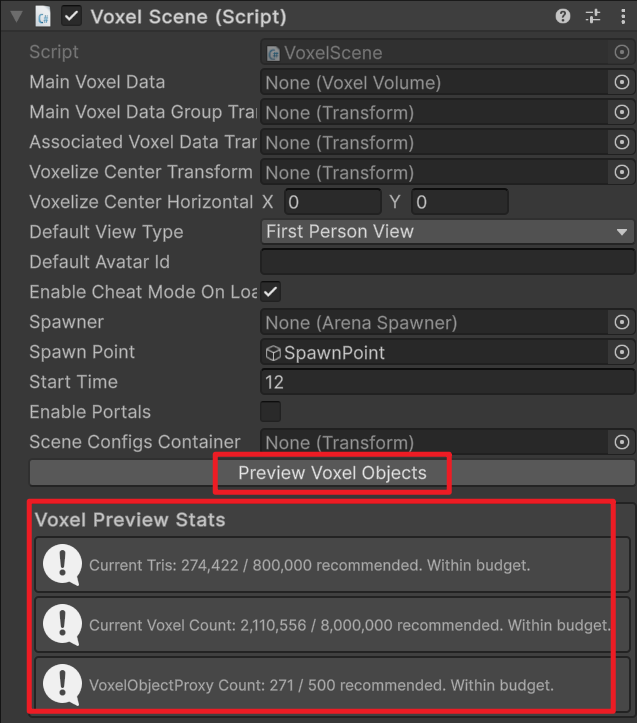
If any value is over budget, simplify the voxel model, split or merge objects where appropriate, and preview again before exporting.
Step 5: Test and Publish
Now you can build and test your track in the game.