Tutorial: NYC
This tutorial demonstrates how to create a destructible city environment mod, similar to the NYC sample scene.
Path in Mod Toolkit: Assets/Samples/NYC
Step 1: Modeling in MagicaVoxel
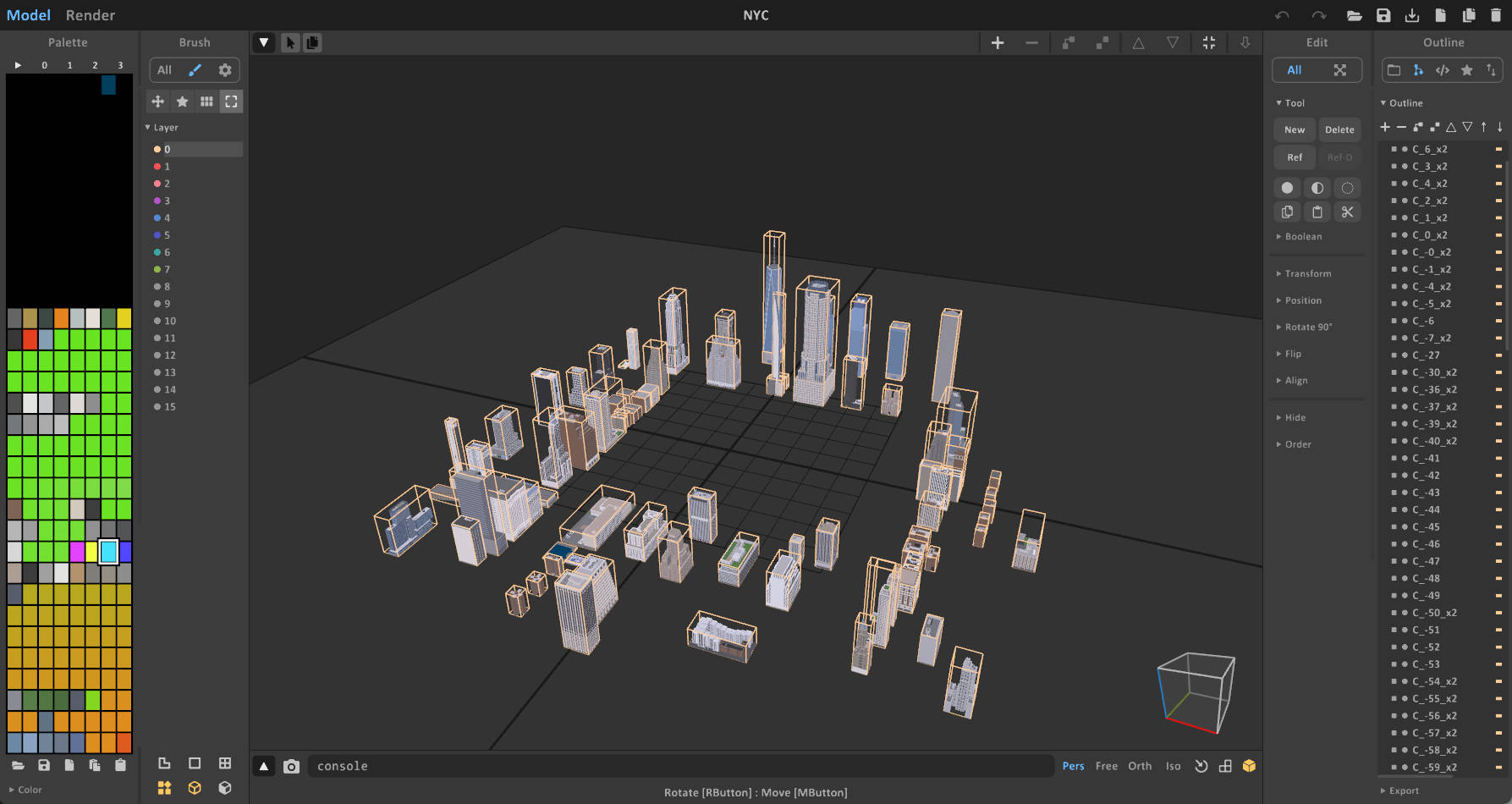
Create your city buildings and environment in MagicaVoxel.
Scaling and Limits
MagicaVoxel has a size limit (usually 256x256x256 per object). City buildings can often exceed this size.
- Strategy: Model your buildings at half scale (0.5x) in MagicaVoxel.
- Naming: You can append
_x2to the object name as a reminder to scale it back up by 2x in the Unity Editor later.
Naming Conventions
For destructible buildings that need to stay rooted to the ground until their base is destroyed, use the C_ prefix.
C_(Strong Connected): Objects with this prefix are imported as destructible items but include anUnyieldingAreacomponent. This component keeps the object "kinematic" (immovable) as long as the unyielding area overlaps with a static object (like the ground).- Example:
C_BuildingA,C_Skyscraper
- Example:
Refer to the Scene Naming Guide for more details.
Step 2: Import and Setup
1. Import Voxel Models
- Import your
.voxfile using the Asset Processor. - Set the Type to Scene (if importing a full scene assembly) or Object (if assembling manually).
- Convert to generate prefabs.
2. Scene Assembly in Unity
- Place your building prefabs into the scene.
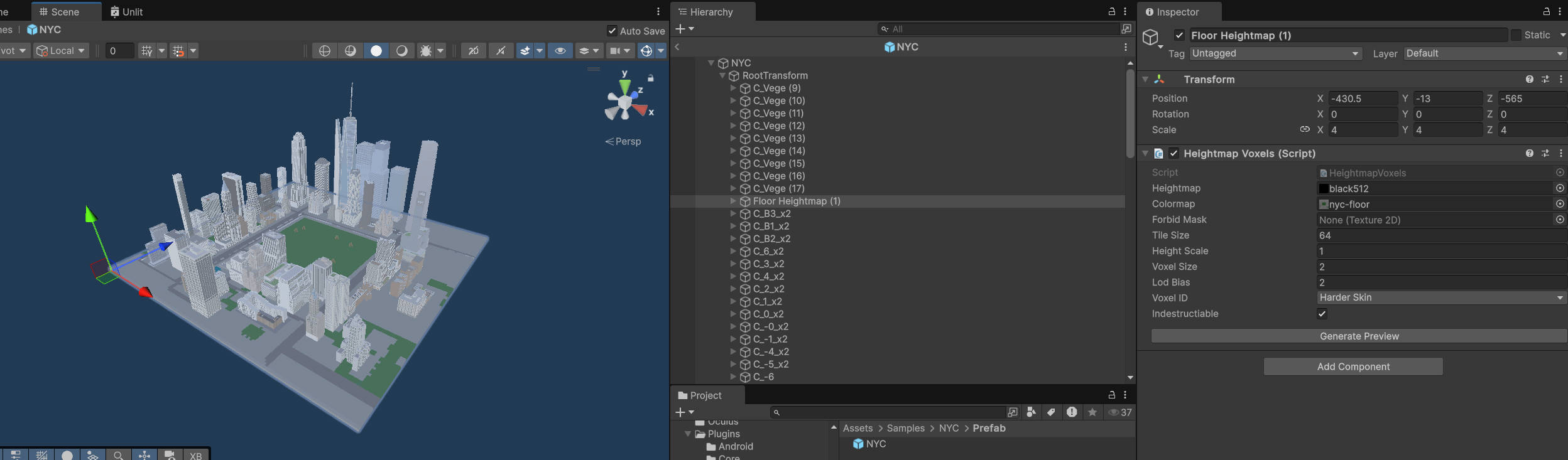
- Rescale: If you modeled at half scale, set the Scale of your building transforms to
(2, 2, 2).
3. Add Ground (Heightmap)
To create a large, solid ground for the city, use the HeightmapVoxels system. This is more efficient than building a massive floor in MagicaVoxel.
- Create an empty GameObject.
- Add the
HeightmapVoxelscomponent. - Assign your Heightmap and Colormap textures.
- Ensure textures are Read/Write Enabled.
- See Heightmap Voxels for detailed setup.
4. Configure Unyielding Area
For your C_ buildings to stand upright:
- Select the building prefab in the scene.
- Locate the
UnyieldingAreacomponent (automatically added by theC_prefix). - Adjust the Center and Size of the unyielding area box.
- Crucial: Ensure this box overlaps with the ground voxels (the Heightmap terrain).
- The system checks for voxel connectivity within this box. If it finds the static ground, the building remains stable.
- If the connection to the ground is severed (e.g., player destroys the bottom of the building), the building will become dynamic and collapse.
Step 3: Configure Mod Manifest
Register your scene in the ModManifest.
- Open your
ModManifestasset. - Add the Scene Prefab to the Export Prefabs list.
- Ensure the mod type and details are correct.
Step 4: Test and Publish
Build and test your city scene.