Test Mod
This guide explains how to install and test your mod in Voxel Playground.
1. Install the Mod
Option A: Automatic Installation (Recommended)
The easiest way to install your mod is using the Mod Exporter tool included in the SDK.
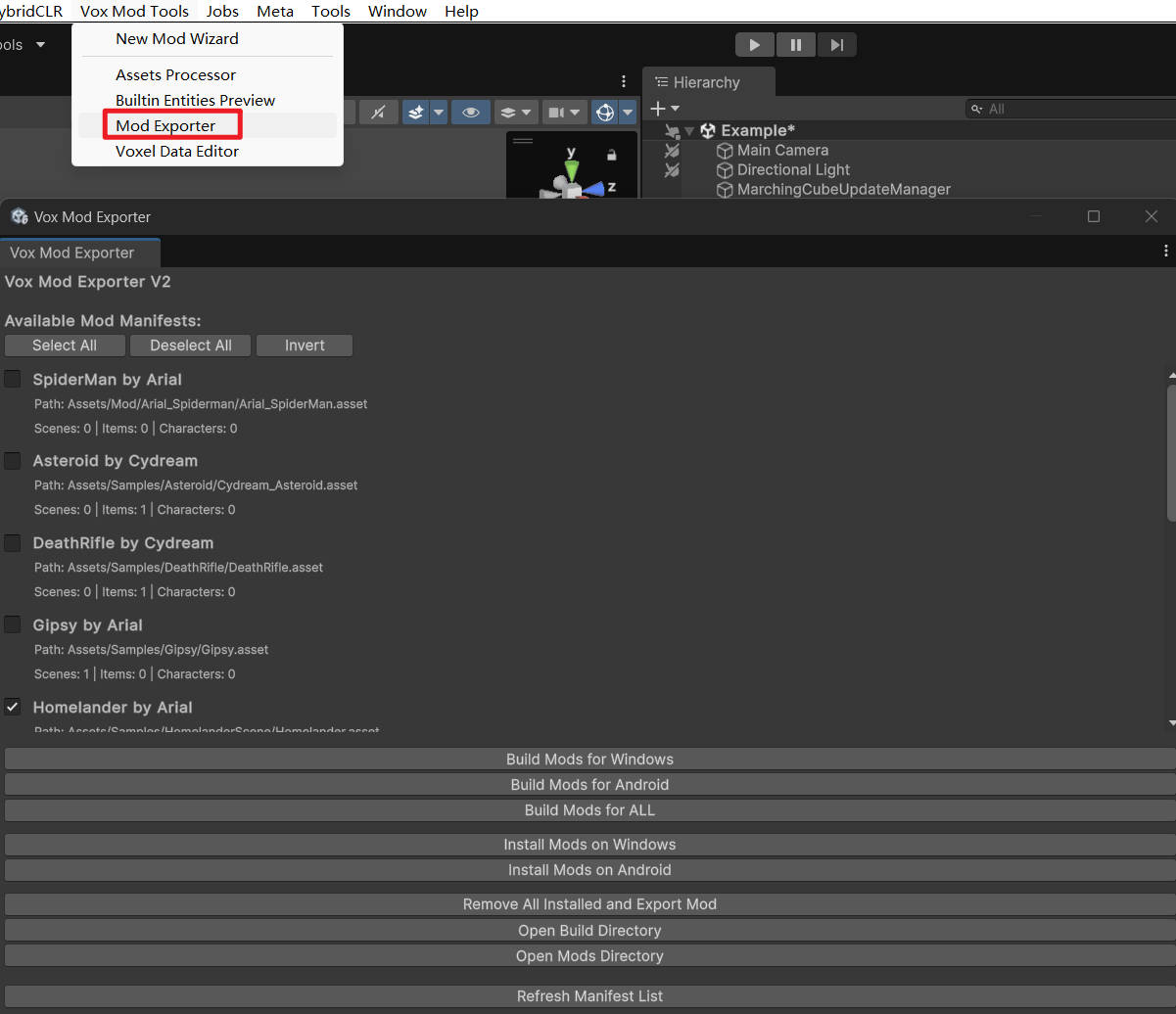
- In Unity, go to Vox Mod Tools > Mod Exporter.
- Select your mod from the list.
- Click Build Mods for Windows (or Android).
- Click Install Mods on Windows (or Android).
- This automatically copies the built mod to the game's Mods directory.
Option B: Manual Installation
If you need to install manually (e.g., for testing a build on a different machine):
- Build the Mod:
- Use the Mod Exporter to build your mod.
- Find the built files in the project's
Exportdirectory:- Windows Build:
ProjectRoot\Export\StandaloneWindows\<Creator>_<ModName>\ - Android Build:
ProjectRoot\Export\Android\<Creator>_<ModName>\
- Windows Build:
- Locate Game Mods Directory:
- Windows:
%userprofile%\AppData\LocalLow\Cydream\Voxel Playground\Mods\
- Windows:
- Copy Files:
- Copy the entire build folder (e.g.,
<Creator>_<ModName>) into theModsdirectory. - The structure should look like:
...\Voxel Playground\Mods\<Creator>_<ModName>\...
- Copy the entire build folder (e.g.,
The game will automatically load valid mods from this directory upon startup.
2. Open In-Game Console
The in-game console is useful for viewing logs and debugging errors.
In VR Mode
To view the console in VR:
- Start the game.
- Look at your Left Hand (rotate your wrist so the palm or back is visible to you).
- Open Settings -> Dev -> Console.
- The console window is attached to your left hand and will display logs.
- Debug statistics are attached to your Both Hand.
Note: The in-game console is currently only available in Development builds.
In Flatscreen Mode
The VR in-game console is not available in Flatscreen mode. Instead, you can view the logs in the Unity Player Log file:
- Log File Path:
%userprofile%\AppData\LocalLow\Cydream\Voxel Playground\Player.log
You can open this file with any text editor (e.g., Notepad, VS Code) to view logs and errors in real-time (if the editor supports auto-refresh) or after closing the game.
3. Use Flatscreen Mode
For faster iteration without using a VR headset, you can run the game in "Flatscreen" mode (FPS style).
Enabling Flatscreen Mode
Add the command line argument --flatscreen when launching the game executable.
- From Command Line:
Voxel Playground.exe --flatscreen
Flatscreen Controls
When in Flatscreen mode, the game uses standard FPS controls:
- Movement:
W,A,S,D - Look: Mouse
- Jump:
Space - Fire: Left Mouse Button (Left Hand), Right Mouse Button (Right Hand)
- Abilities/Interaction:
1: Left Hand Ability3: Right Hand Ability (e.g., Drive Vehicle, Sit)Q: Left Hand GripE: Right Hand Grip