Modding Overview
Voxel Playground supports various types of mod content, primarily driven by .vox assets. This section covers the fundamental workflow for importing and configuring your voxel assets.
Importing Vox Files
To bring your voxel creations into the game, follow these steps using the Vox Assets Processor.
Drag and Drop: Drag your
.voxfile into the Vox Assets Processor window.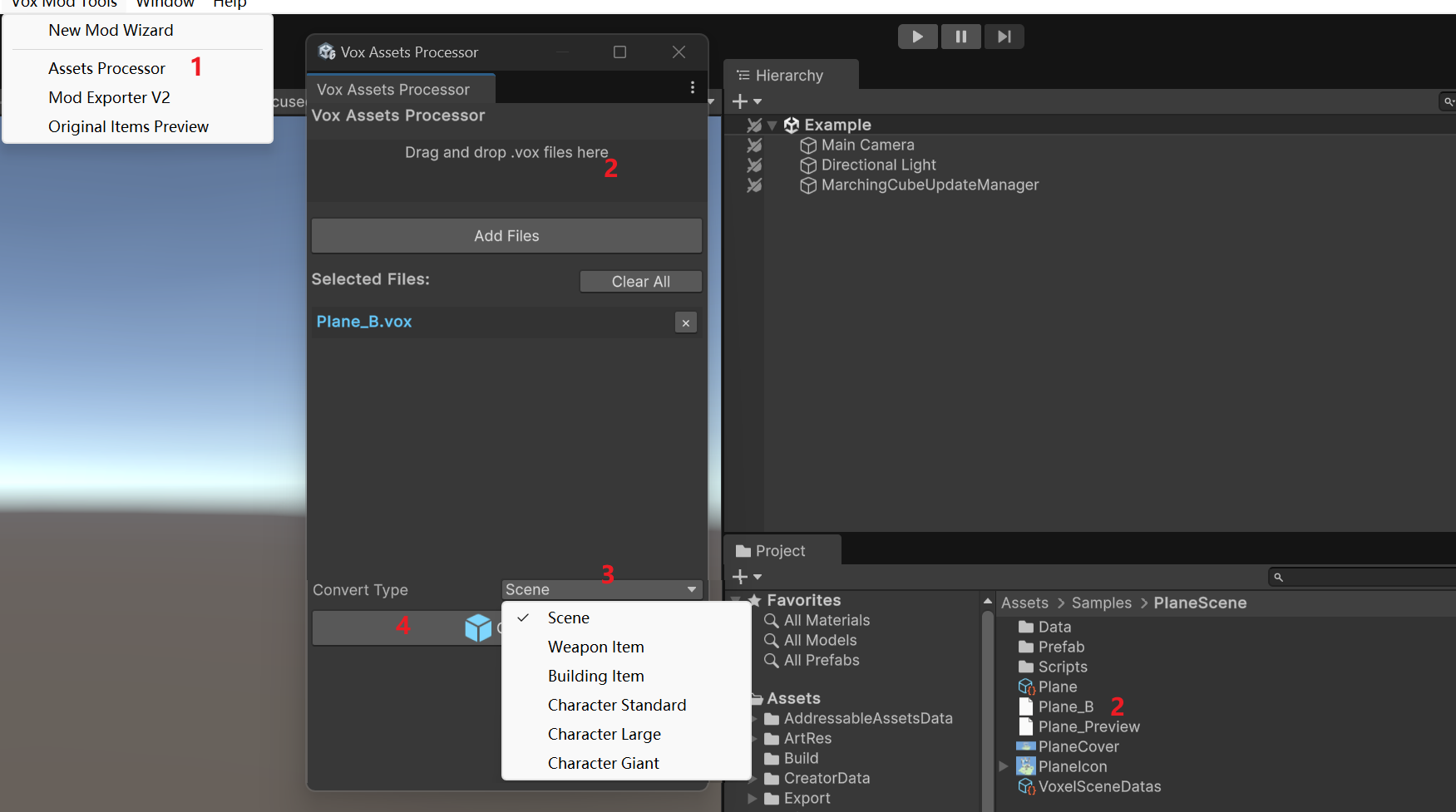
Select Asset Type: Choose the appropriate category for your asset:
- Scene: Full environments or maps. These can use A/B/C/D configurations (see Scene Tutorial).
- Weapon: Guns, melee weapons, or other handheld items.
- Building: Constructible architectural elements.
- Character: Playable avatars or NPCs.
Generate Prefab: Click the Generate button.
- This will create a new Unity Prefab in your mod's
/Prefabfolder.
- This will create a new Unity Prefab in your mod's
Register in Manifest: Don't forget to add this new Prefab to your
ModManifestto ensure it gets exported.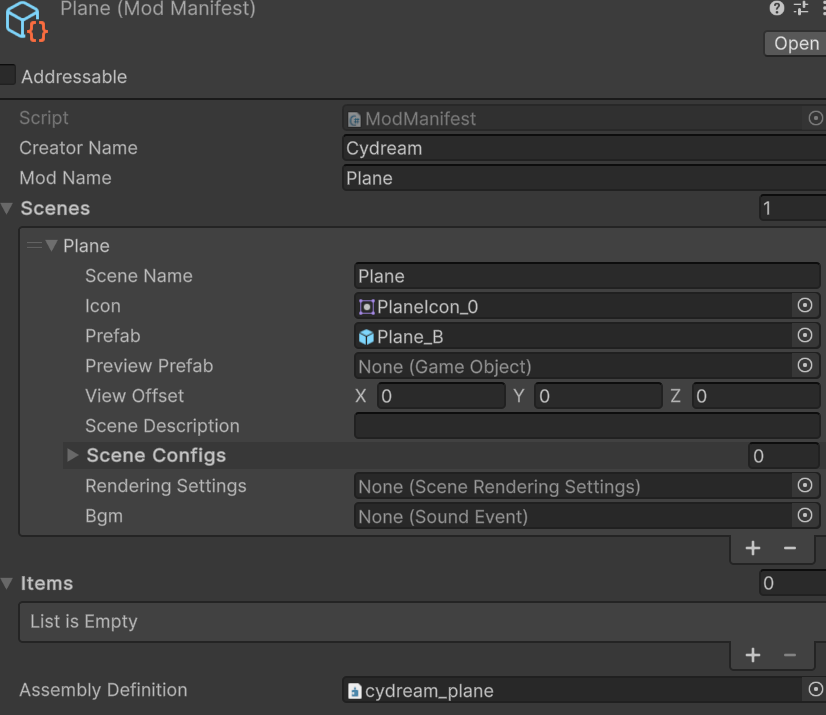
Asset Configuration
Once your prefab is generated, it often requires specific configuration depending on its type.
- Scene Configuration: Learn how to set up static and dynamic environment objects using Proxies.
- Character Configuration: Learn how to rig and resize voxel characters.